

Installing programmes from the command line
- matildascott111
- Jul 20, 2023
- 2 min read
If you are like me, you likely attended a Linux training course and were then set free on a supercomputer. I found that how-to-guides often required a certain knowledge base, that it seemed impossible to gain from the internet. Here, and on my GitHub page, I go over how to install programmes from the command line. Some programmes have great documentation, but these sadly seem to be the minority.
The simplest way to install programmes is through Conda. Google the programme name and conda to find out if Conda has the programme. Let's go through this example with Seqkit, a FASTA/Q manipulation package.
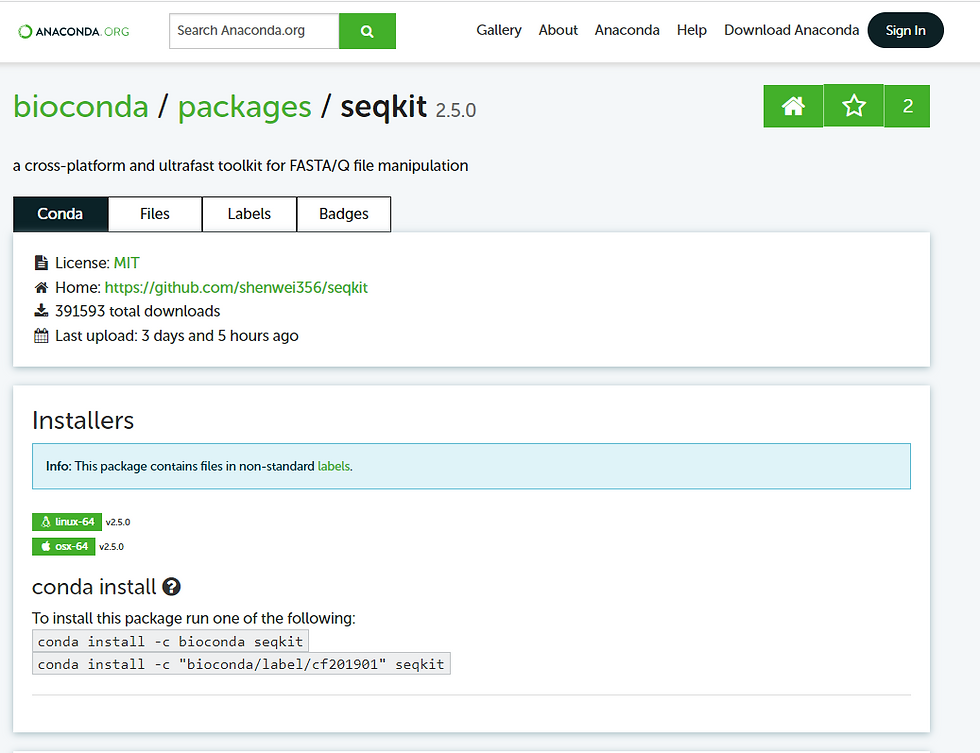
Step 1: Google "conda seqkit" and follow the link.

We will use some of the installation code from this website.
Step 2: Create your own Conda environment, you can call this whatever you like, but I tend to stick with the programme name.

Step 3: Activate the environment.

Step 4: Install the programme into our environment using the code on Conda's website.

That's it, you're all set up and ready to go. Conda has installed all the dependencies for you.
To use the programme in the future, we simply need to activate the environment again.

If at any point you need to deactivate the conda environment, use:

It is also possible to download programmes directly from the command line if you can get a URL.
The URL may be available in the documentation online or through GitHub. On the GitHub page, press the green 'code' button, and copy the link from here.
Step 1: In either case, move into the directory where you wish to install the programme.

Step 2: Download the package from the command line.
Step 2A: URL from package documentation. Use 'wget' followed by the URL

Step 2B: URL from GitHub. In this case, we need to use 'git clone' followed by the URL

From here there are a few options depending on the file type that has downloaded.
Step 3A: tar.gz file type. Find the documentation and see if there is any guidance for the configure/make process; there should be a README file. Follow these steps to get your programme ready to use. 'progname' refers to the programme name.

Step 3B: a file without any file extensions

Step 4: Now we are ready to use our programme.
Option 4A: To add the programme to your file path, either in the command line or within scripts, run:

Option 4B: To use the executable file in the command line from any directory run:

Option 4C: To use the executable file in the command line from the programme directory run:

These are the main ways that I have come across to install programmes. Occasionally I have resorted to downloading the zipped package file onto my laptop and then moving this onto HPC. However, I try to avoid this if at all possible!
To get a copy-able version of this code, visit my GitHub.

Comments